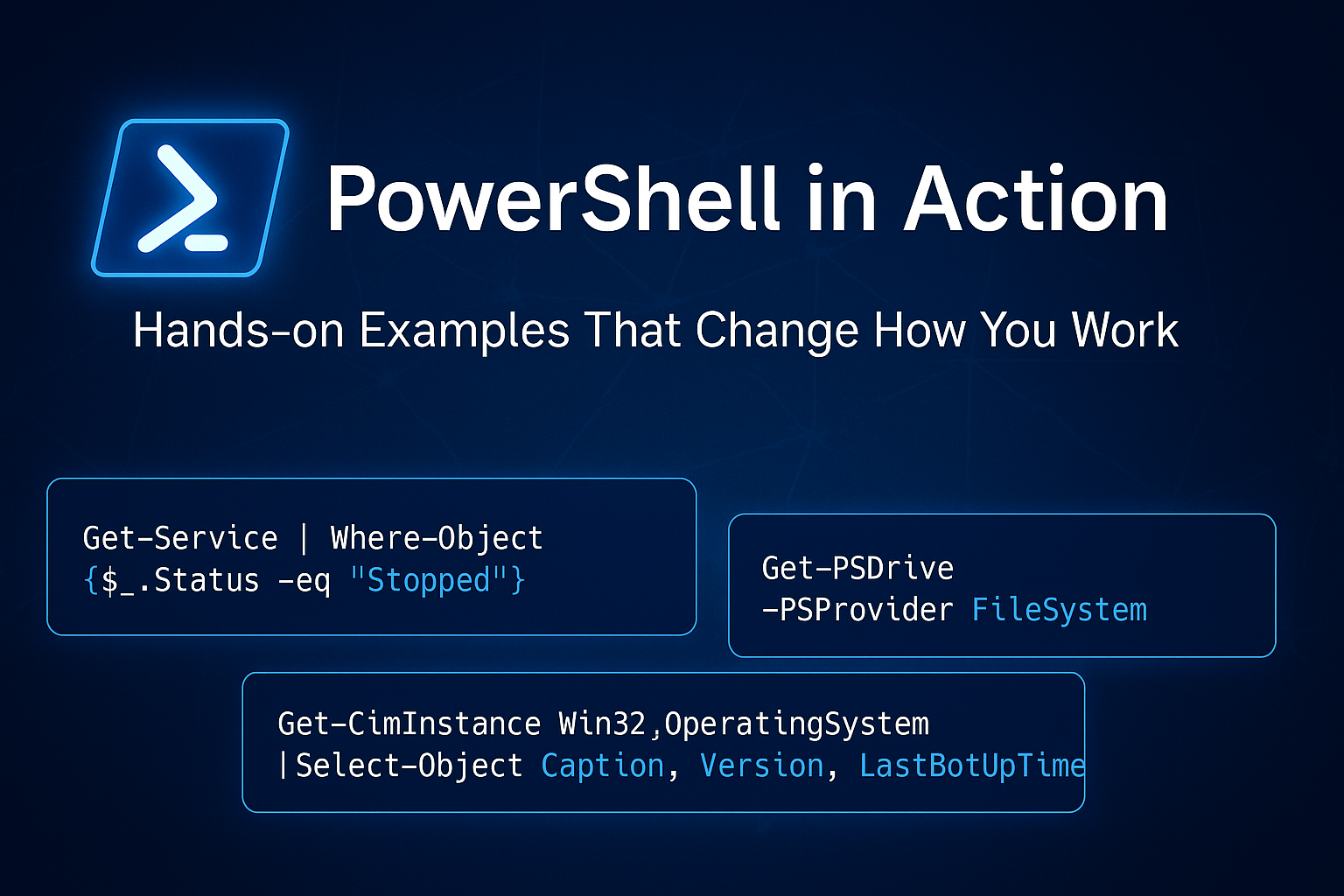
PowerShell in Action: Hands-on Examples That Change How You Work
A hands-on continuation of my previous PowerShell blog that takes a practical approach to showing how PowerShell changes the way you interact with a system.
It kicks off with core cmdlets and continues with examples that demonstrate the power of pipelines, working with structured data instead of string parsing, creating simple scripts to save time, interacting with the operating system, and finally, setting up and running PowerShell 7.5 on Ubuntu Desktop 24.04.
1. Getting Started with PowerShell Core Cmdlets
The foundation of PowerShell lies in its cmdlets. Cmdlets are small, task-specific commands that perform a variety of powerful actions. Traditional command-line utilities such as CMD or Bash output data as plain text, whereas PowerShell cmdlets output rich objects. This difference enables cleaner automation and makes data manipulation easier and more intuitive.
The Get-Help and Get-Command cmdlets are two of the most valuable tools when learning PowerShell. These cmdlets provide instant access to documentation and available commands directly from the terminal, reducing the need for constant web searches.
The Get-Help cmdlet displays built-in documentation for commands (cmdlets), allowing you to view syntax, parameters, and even full usage examples without leaving the shell. This makes it an excellent resource for technicians exploring automation.


The Get-Command cmdlet lists every available cmdlet or function on a given system, making it easy to discover what PowerShell can do in the current environment.

The cmdlets Get-Process and Get-Service provide the ability to monitor system performance and service health without relying on tools like Task Manager or Services.msc. This shift alone saves time and integrates perfectly into scripts or automated reports.


Finally, the Get-EventLog cmdlet gives access to Windows Event Logs directly from PowerShell, a massive advantage for troubleshooting or generating log summaries.
Note: On modern systems running PowerShell 7 and later, the Get-WinEvent cmdlet is preferred, as Get-EventLog is considered legacy and primarily supported for backward compatibility.


2. Working with Pipelines
The pipeline is one of PowerShell's greatest strengths and advantages. Instead of passing plain text between commands, PowerShell pipelines pass entire objects, complete with properties and methods. This makes filtering, sorting, and transforming data extremely efficient.
The examples below chain multiple cmdlets together to pull data from one source, filter it, and output clean results. Once you become more comfortable using pipelines, your workflow starts to evolve, repetitive data filtering and log parsing tasks become quick one-liners.


3. Accessing Data the Easy Way (No String Parsing Needed)
In traditional shells like CMD and Bash, data is returned as plain text. This often requires string parsing to extract the information you need. PowerShell eliminates that limitation entirely by returning structured objects with accessible properties.
For example, when you query system or network information, you don't need to rely on text manipulation. Instead, you can directly call object properties such as .Status, .Name, or .CPU.
The comparison below shows how PowerShell replaces traditional string parsing logic. In CMD, you'd typically run a command like sc query spooler and then manually parse the output to find the service status.

In PowerShell, that same task is simplified with Get-Service spooler, which outputs a structured object you can query directly, no parsing required.


4. Simple Scripts to Save Time
PowerShell scripting turns repetitive tasks such as monitoring disk space or verifying service status into reusable workflows that can easily be automated. Even short scripts can make a huge difference in day-to-day IT operations.
What makes PowerShell stand out here is that every script can be modular, meaning you can break down logic into functions, reuse variables, and scale these scripts into larger automation frameworks over time.


5. Interacting with the Operating System
PowerShell allows you to control nearly every aspect of the operating system. Whether you're creating directories, copying files, managing services and processes, or inspecting network adapters, PowerShell provides full control through a single, consistent syntax.
With the Stop-Service cmdlet, you can stop a running service directly without opening the Services console. Perfect for quick troubleshooting or scripting service restarts.

Using New-Item, you can instantly create files, directories, or registry entries.


The cmdlets Copy-Item and Remove-Item provide complete control over the filesystem. Together, these form the backbone of automated deployment, cleanup, and configuration scripts.


Finally, with the Get-NetAdapter and Get-ComputerInfo cmdlets, you can instantly gather network and system details for inventory, troubleshooting, or reporting. All without clicking through a single GUI.


6. Running PowerShell 7.5 on Ubuntu Desktop 24.04
One of the most exciting advancements in PowerShell's evolution with .NET Core is its expansion into Linux. It's no longer a Windows-only tool. You can now use the same commands and scripts across different operating systems, making PowerShell truly cross-platform.
In this section, I walk through installing PowerShell 7.5 on Ubuntu Desktop 24.04 and running a few simple commands to confirm functionality. These screenshots represent the process from package updates to the final PowerShell installation.
Step 1: Update package lists


Step 2: Install prerequisites

Step 3: Import Microsoft GPG Key

Step 4: Install PowerShell


Step 5: Launch PowerShell

Building these examples reminded me why I enjoy PowerShell so much. It's not just about commands—it's about efficiency, creativity, and control.
Whether you are maintaining servers, automating reports, or experimenting in your own environment, PowerShell gives you the tools to truly shape how you work and to approach every task with a mindset focused on precision and automation.
PowerShell is a trademark of Microsoft Corporation. This content is for educational purposes and is not affiliated with or endorsed by Microsoft.